> ## Documentation Index
> Fetch the complete documentation index at: https://trymassive.ai/resources/llms.txt
> Use this file to discover all available pages before exploring further.
# How to invite Massive to your Google Business Profile as a manager
> Step-by-step instructions for adding the Massive Support team as a manager on your Google Business Profile, so we can optimize and troubleshoot it for you.
To help us troubleshoot issues, update information, or manage your profile on your behalf, you can invite the Massive Support team as a **Manager** on your Google Business Profile.
This guide walks you through the process. The whole thing takes less than a minute.
**Support email to invite:** `support@trymassive.ai`
## Before you begin
You must be signed in to Google with an account that has **Owner** access to the Business Profile you want to share. Only owners can add or remove other people from a profile.
## Step 1: Open your Business Profile
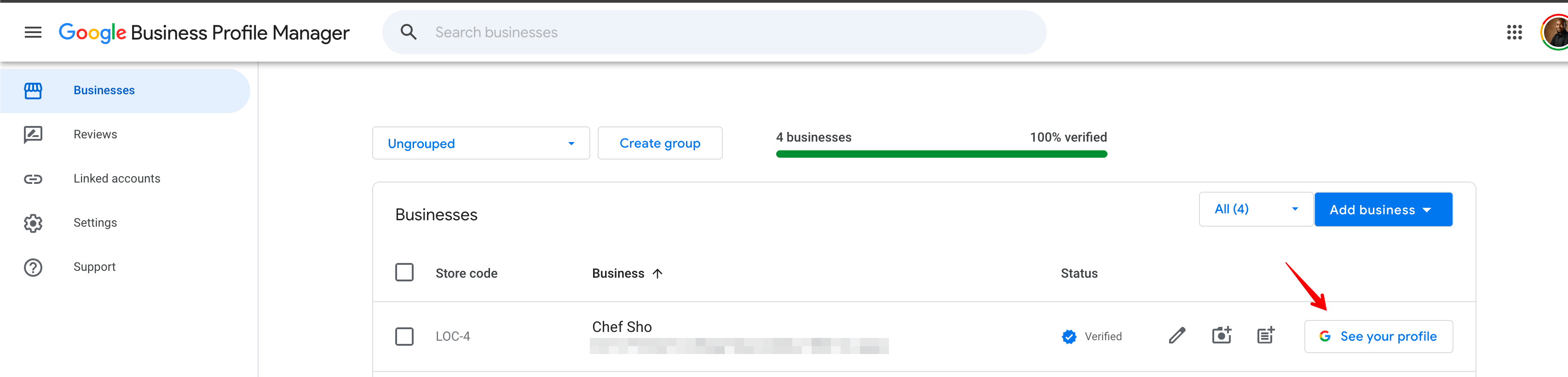
Go to the [Google Business Profile Manager](https://business.google.com/) and find the business you want to share. Click **See your profile** on the right side of the listing.
 ## Step 2: Open Business Profile settings
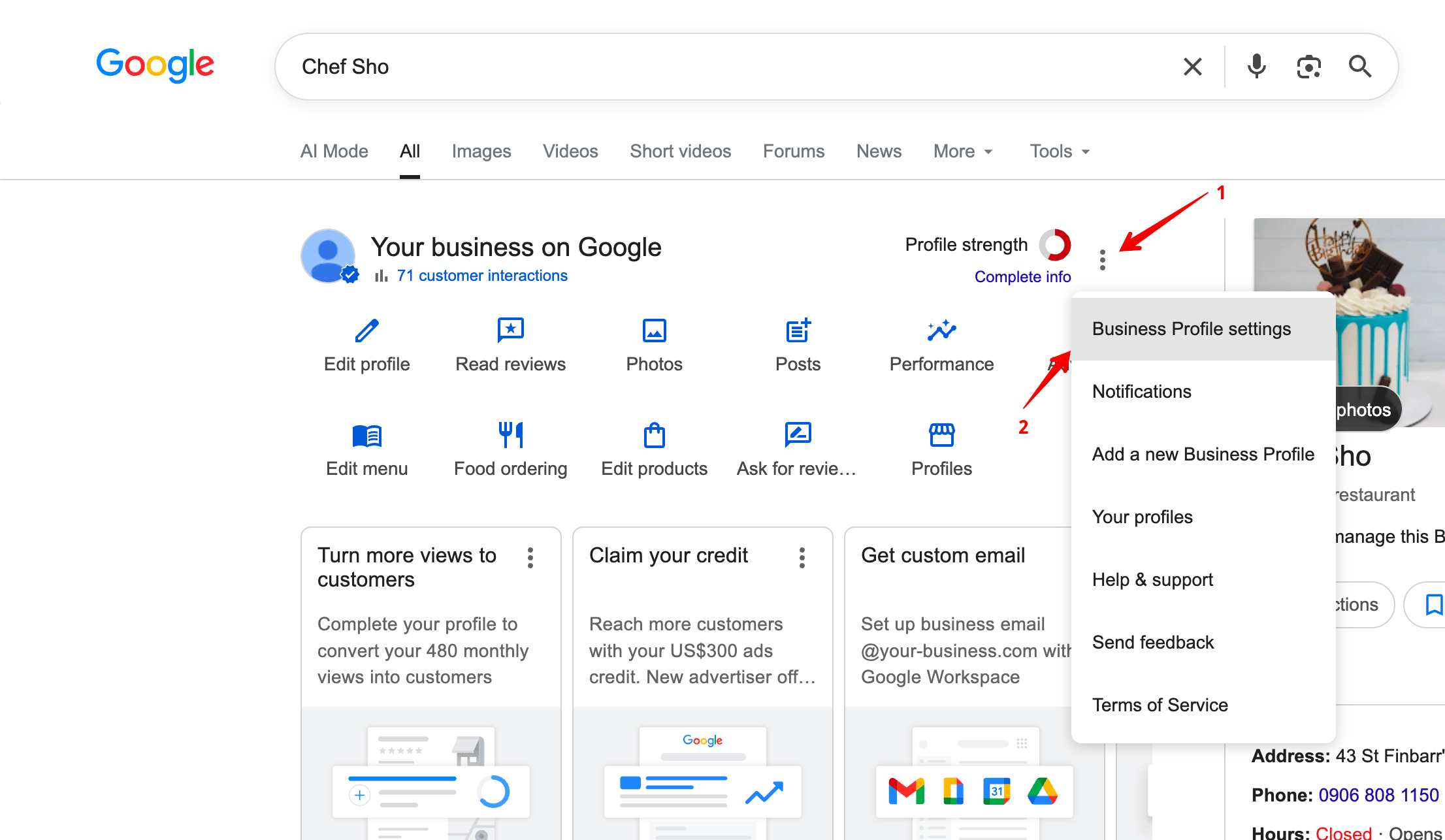
Your profile will open directly on Google Search. Click the **three-dot menu** next to "Profile strength", then select **Business Profile settings**.
## Step 2: Open Business Profile settings
Your profile will open directly on Google Search. Click the **three-dot menu** next to "Profile strength", then select **Business Profile settings**.
 ## Step 3: Go to People and access
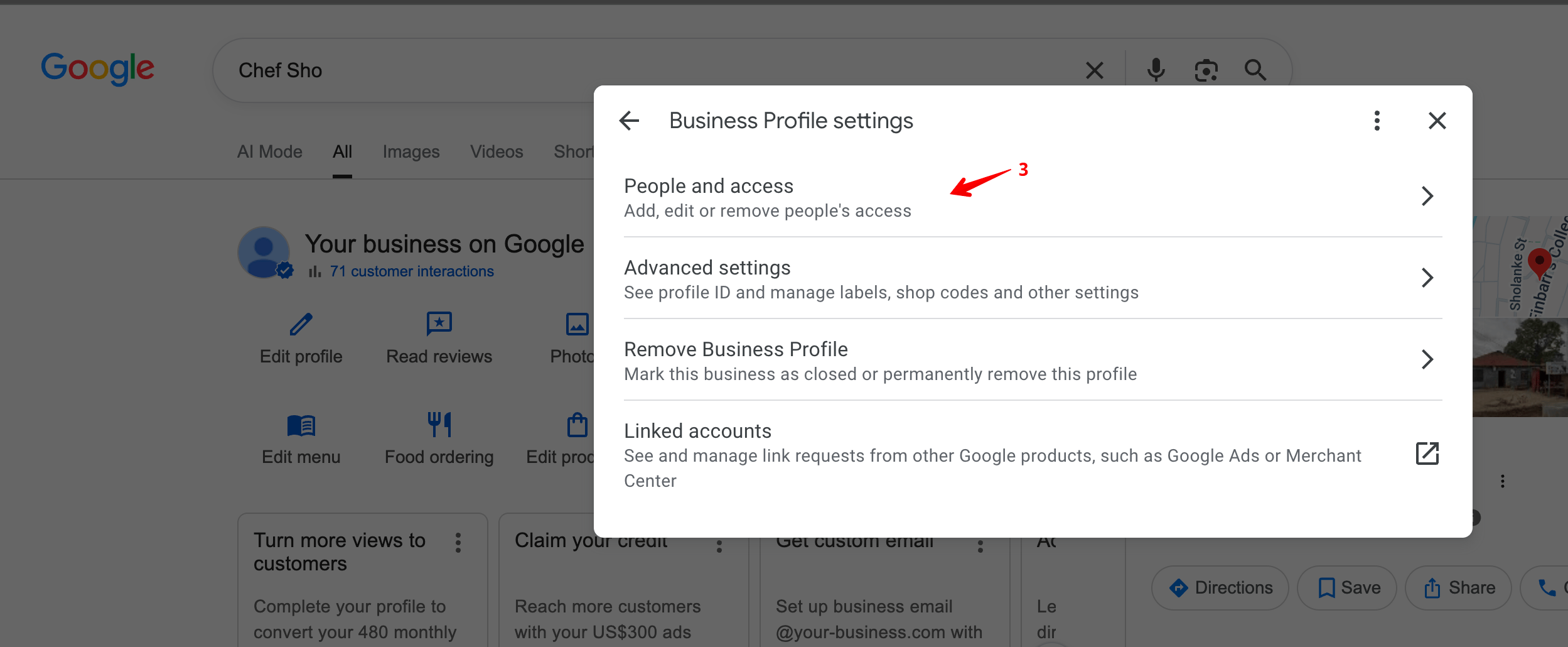
In the settings panel, click **People and access**.
## Step 3: Go to People and access
In the settings panel, click **People and access**.
 ## Step 4: Click Add
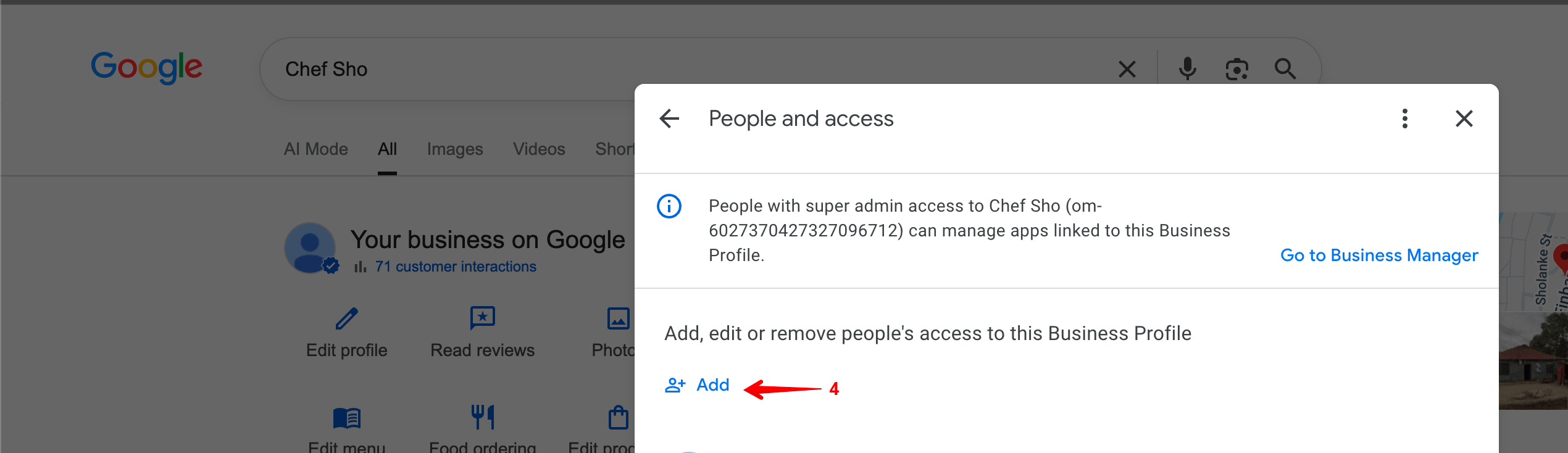
You will see a list of everyone who currently has access to the profile. Click the **Add** button to invite a new person.
## Step 4: Click Add
You will see a list of everyone who currently has access to the profile. Click the **Add** button to invite a new person.
 ## Step 5: Invite Massive Support as a Manager
In the "Add person" dialog:
## Step 5: Invite Massive Support as a Manager
In the "Add person" dialog:
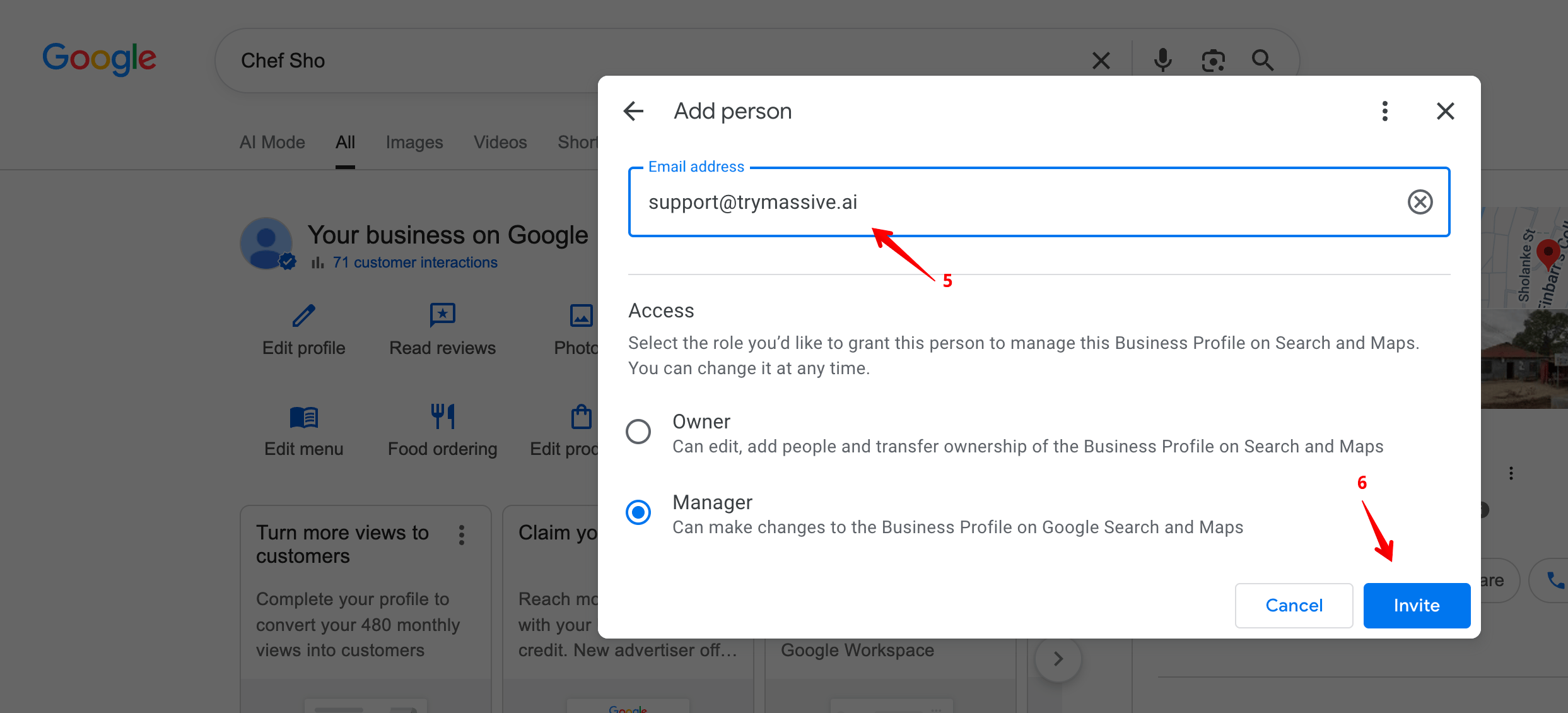 1. Enter `support@trymassive.ai` in the **Email address** field.
2. Under **Access**, select **Manager**.
3. Click **Invite**.
## What happens next
Our team will receive the invitation by email and accept it within one business day. Once we accept, you will see us listed under **People and access** with the **Manager** role.
You can remove our access at any time from the same **People and access** screen.
## Why Manager access?
The **Manager** role gives our team everything we need to support you, including the ability to see your profile strength directly from google. It does **not** allow us to transfer ownership or remove other users, so your account remains fully under your control.
## What happens next
Once we have access, we begin the optimization work described in [the complete 2026 Google Business Profile guide](/resources/resources/how-to-optimize-your-google-business-profile-the-complete-2026-guide). If you are still deciding whether to hand this over, [DIY vs done-for-you profile management](/resources/resources/diy-vs-done-for-you-google-business-profile-management) lays out both options.
## Need help?
If you run into any issues during these steps, reply to your onboarding email or reach out to us at [support@trymassive.ai](mailto:support@trymassive.ai) and we will walk you through it.
1. Enter `support@trymassive.ai` in the **Email address** field.
2. Under **Access**, select **Manager**.
3. Click **Invite**.
## What happens next
Our team will receive the invitation by email and accept it within one business day. Once we accept, you will see us listed under **People and access** with the **Manager** role.
You can remove our access at any time from the same **People and access** screen.
## Why Manager access?
The **Manager** role gives our team everything we need to support you, including the ability to see your profile strength directly from google. It does **not** allow us to transfer ownership or remove other users, so your account remains fully under your control.
## What happens next
Once we have access, we begin the optimization work described in [the complete 2026 Google Business Profile guide](/resources/resources/how-to-optimize-your-google-business-profile-the-complete-2026-guide). If you are still deciding whether to hand this over, [DIY vs done-for-you profile management](/resources/resources/diy-vs-done-for-you-google-business-profile-management) lays out both options.
## Need help?
If you run into any issues during these steps, reply to your onboarding email or reach out to us at [support@trymassive.ai](mailto:support@trymassive.ai) and we will walk you through it.